Print-ready templates
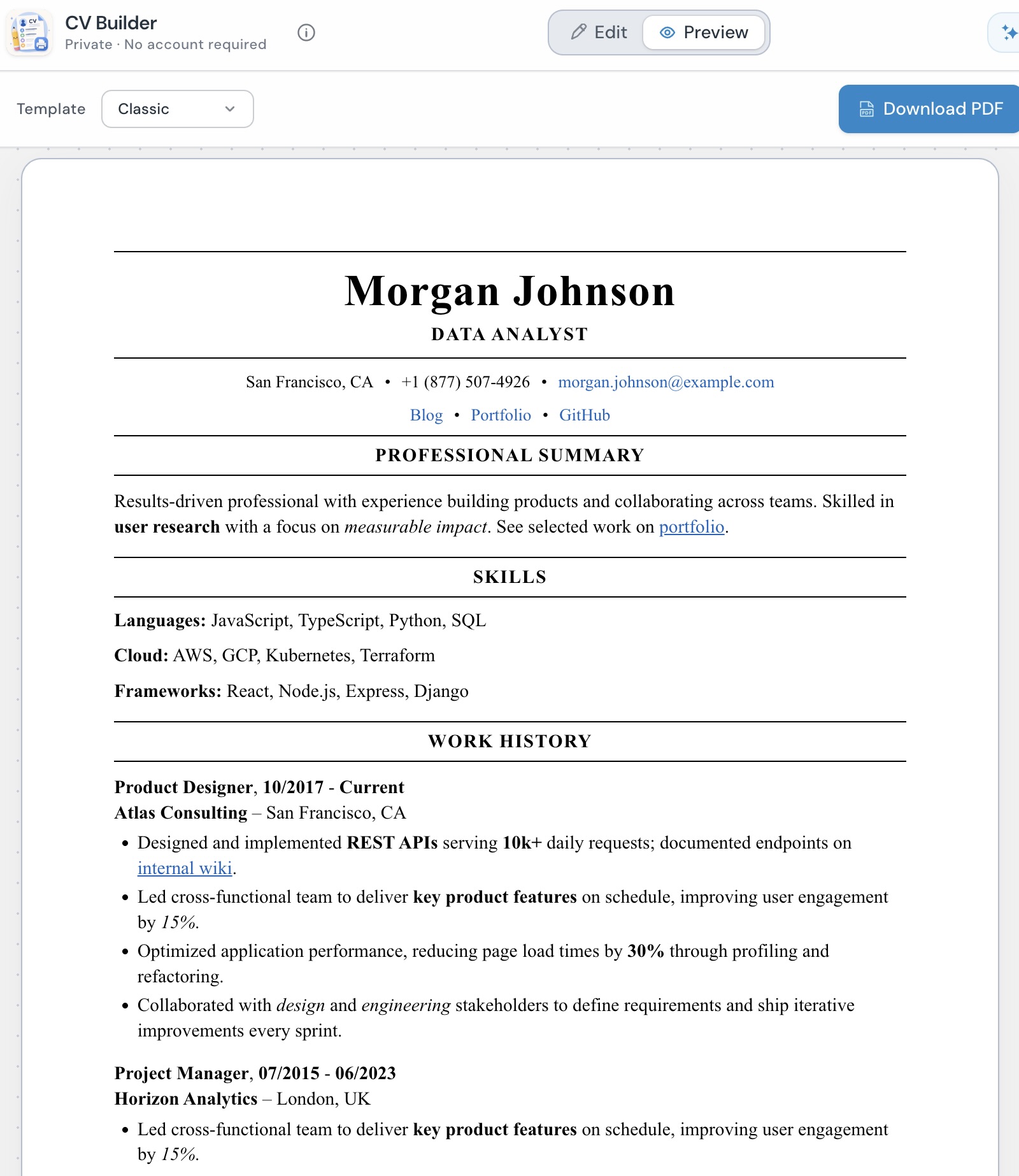
Layouts such as Classic (simple single column), Modern (sidebar with photo and language bars), and Corporate Band (blue header with summary strip). Switch templates in Preview without losing your content.
100% Free · No Sign Up · No Limits
Build, preview and download your CV — all in your browser. Your data stays private. Always.
CV Builder is a resume editor that runs entirely in your browser. You fill in a form on the left, see a live preview on the right, pick a template, and download a PDF or save a backup file. Edits auto-save on this device, with undo and redo for mistakes. No sign-in, and nothing is stored on our servers.
Your resumes are saved on this device. Move them between computers by exporting a backup on one and importing on the other.
Open the app and start editing. No email, password, or profile to create.
Your resume data stays in your browser. We never receive or store your content on a server.
Edits auto-save on this device as you type. Use Export when you want a backup file on disk.
AI Assistant and Convert with AI copy instructions to an AI chat you choose. Nothing is sent until you paste and send there yourself.
Layouts such as Classic (simple single column), Modern (sidebar with photo and language bars), and Corporate Band (blue header with summary strip). Switch templates in Preview without losing your content.
Summary and experience bullets support bold, italic, underline, strikethrough, and links — and show up in the live preview as you type.
Undo and redo edits, reorder sections by drag-and-drop or arrow buttons, and hide sections from your CV with the eye toggle.
Download a PDF from the browser, save a backup file, and install the app so the editor works offline after your first visit.
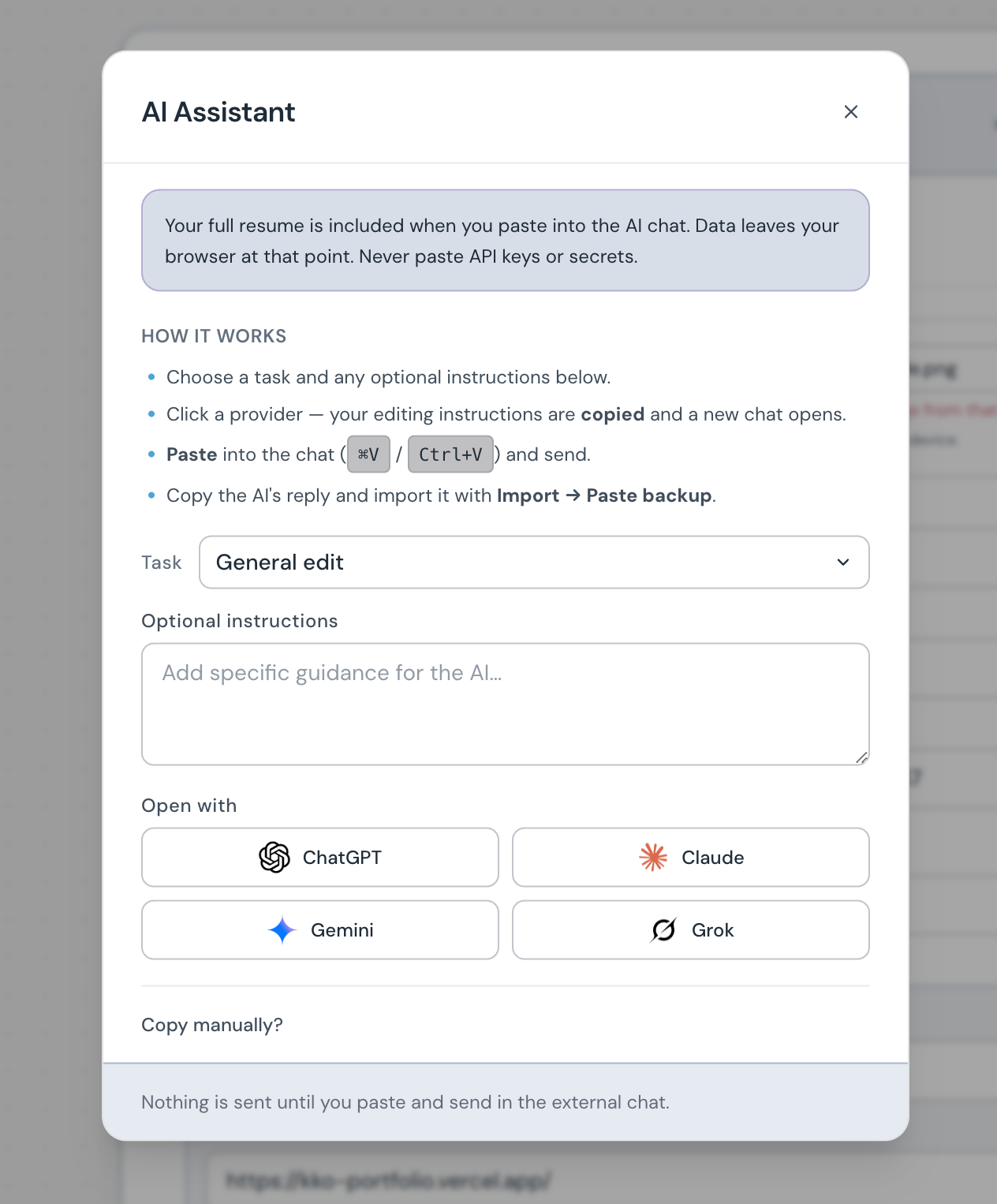
Copy ready-made editing instructions to ChatGPT, Claude, Gemini, or Grok. Paste the AI’s reply back here to update your resume.
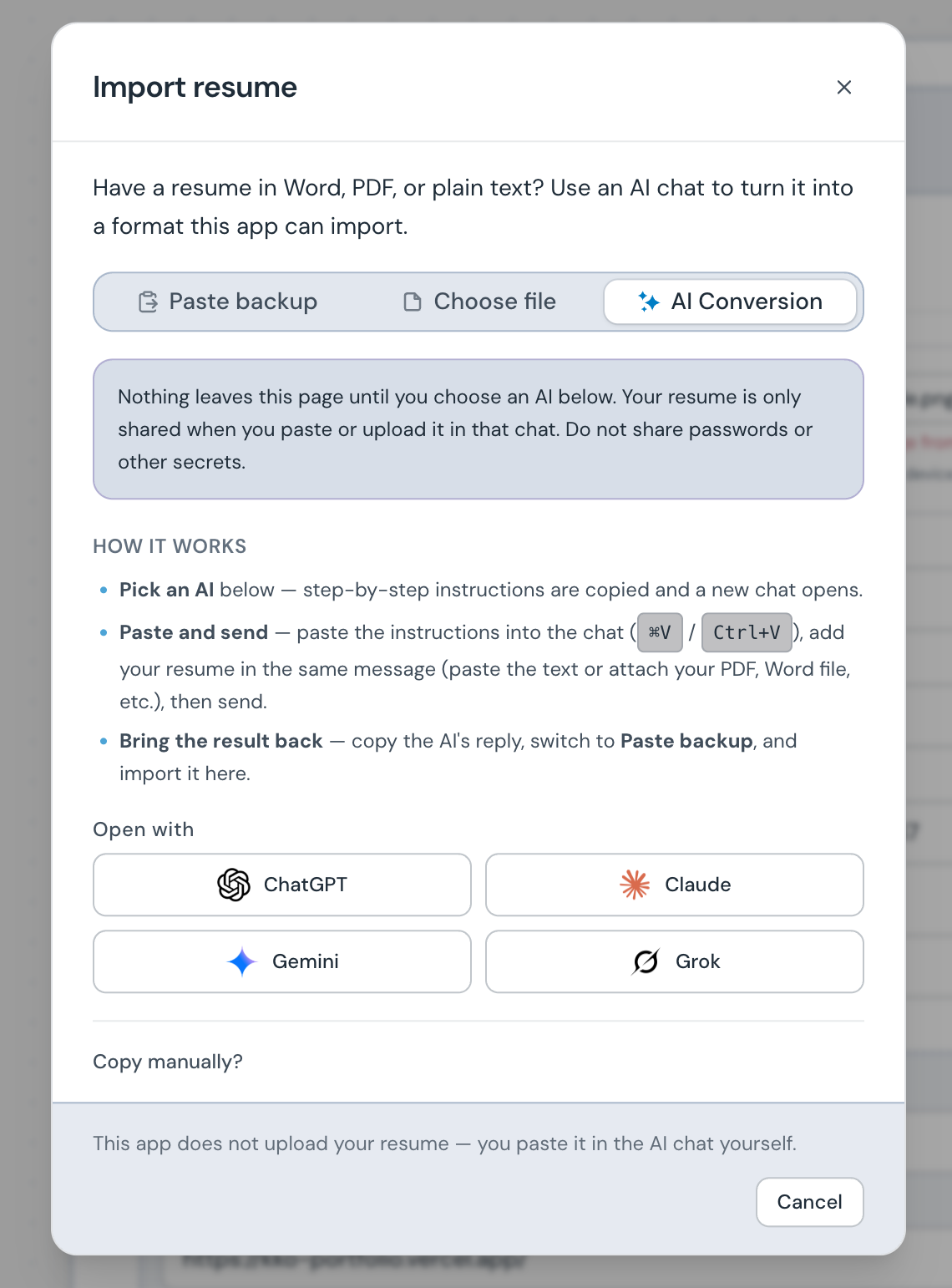
Bring an existing resume from Word, LinkedIn, or plain text. The app copies step-by-step instructions and an example layout — not your resume — so an AI chat can turn your content into something you can import.
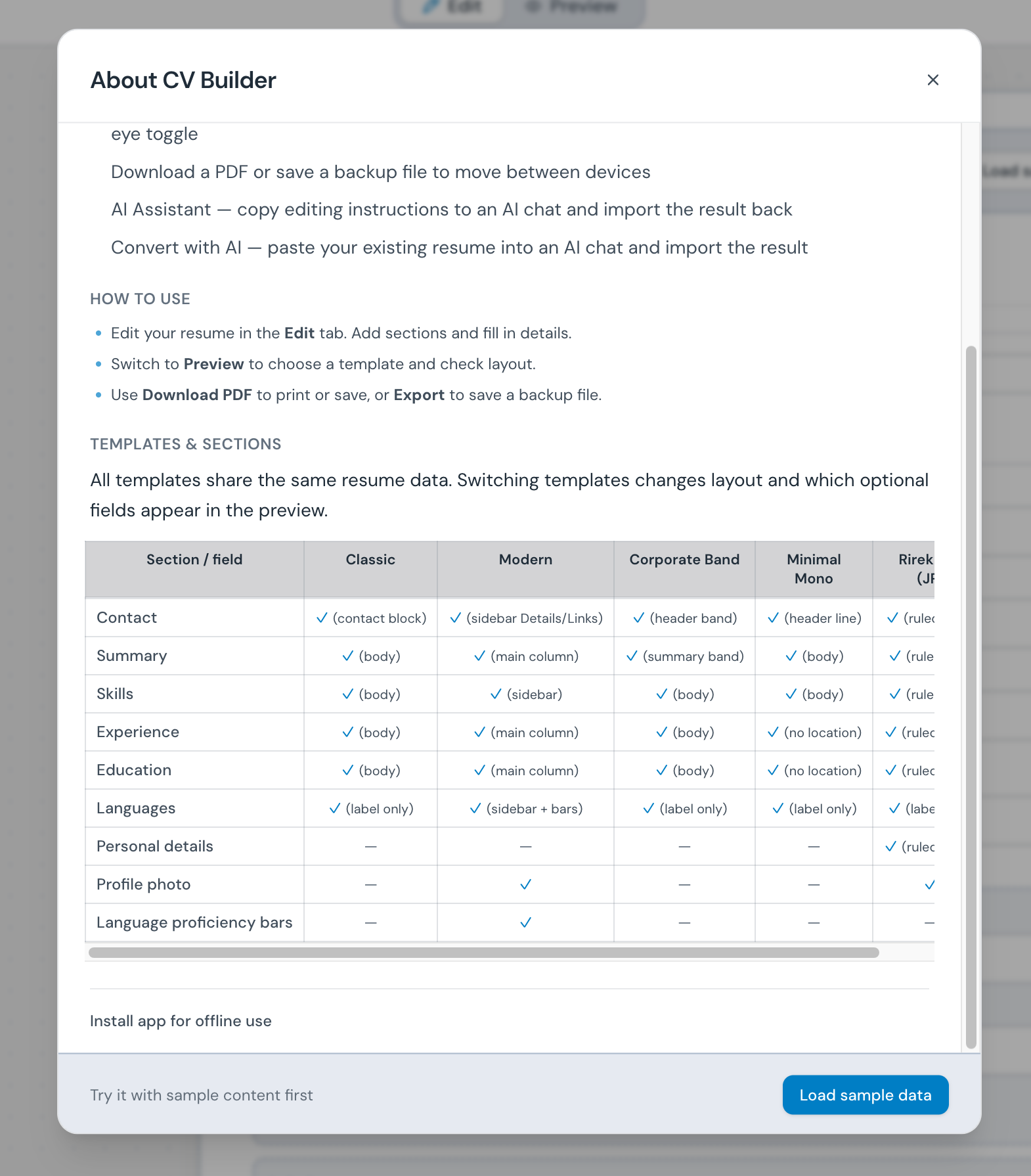
Pick a workflow below — each guide shows exactly where to click in the builder. New here? Start with the interactive product tour. Open the builder and click About (info icon) for a live template comparison table.
A quick walkthrough of the builder interface
New to CV Builder? Take a quick guided tour of the builder — your CVs, the editor, optional AI help, and PDF export. It runs automatically the first time you visit. Replay anytime from here or About in the toolbar.
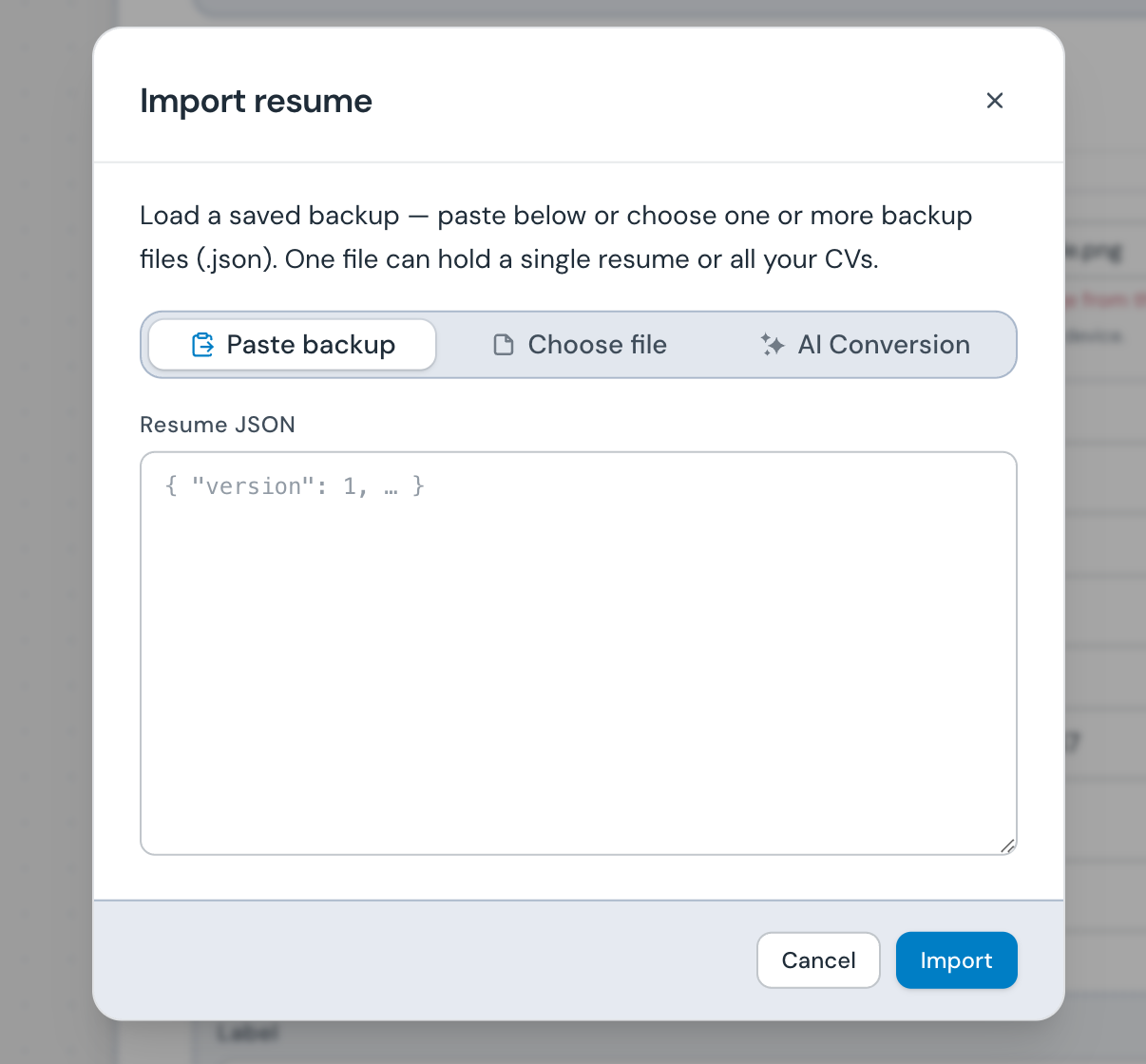
Back up your resume or move it between devices
Refine wording, bullets, or structure with an AI chat
Bring an existing resume from Word, LinkedIn, or plain text
Print or save a print-ready file for applications
Add CV Builder to your home screen or app dock
Yes. There is no subscription, no paywall, and no account to create. Open the builder and start editing.
On this device, in your browser. CV Builder never uploads your content to a server.
A portable save file of your resume that you can download and open again later. You do not need to understand the file format to use CV Builder: fill in the form as usual, and the app handles the rest.
Use Export when you want a backup on disk or to open the same
resume on another device; use Import to load that file back in.
For job applications, use PDF — the backup file is only for transfer. The file
ends in .json, which is normal for this kind of save file.
Export a backup from one device and import it on another. That is the only way to move resumes between machines — there is no online sync.
Yes. Use ⌘Z / Ctrl+Z to undo and ⌘⇧Z / Ctrl+Y to redo. The editor keeps up to 50 recent edits as you work.
It copies editing instructions and opens an AI chat (ChatGPT, Claude, Gemini, or Grok). Nothing is sent until you paste the instructions there yourself. You copy the reply back and import it with Import → Paste backup.
An import option that copies step-by-step instructions and an example layout — not your resume text — to an AI chat. You paste your source resume in that chat, then import the reply the AI returns.
After your first visit, install the app (Add to Home Screen or Install app in your browser). The editor then works offline; your resume data is already saved on this device.
Resumes saved on this device are removed with your browser data. Export a backup periodically if you want a file copy on disk.
Use Download PDF in the toolbar. It opens your browser’s print dialog — choose Save as PDF (or your system’s equivalent) to download a print-ready file.